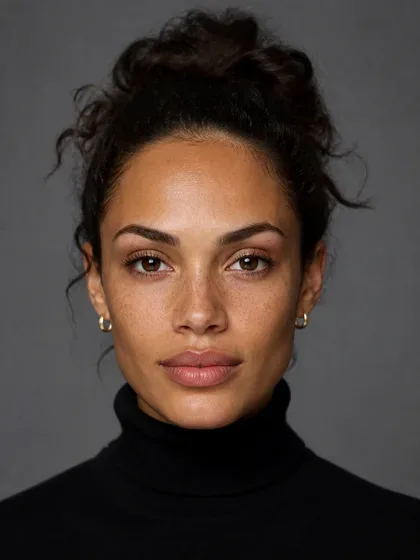
Mirror Online: Use Your Camera Instantly
Use a mirror online in your browser, fix camera access problems, compare mirrored views, and improve lighting, distance, and clarity.
To use a mirror online, allow camera access in your browser, select the camera facing you, and adjust your position until the view is clear. A browser-based mirror does not require a separate app, but it does need a working camera and permission to use it.
Use the preview for a quick hair, makeup, glasses, clothing, or video-call check. Camera distance, lighting, lens choice, and display settings can change what you see, so a webcam image is not an exact substitute for a physical mirror.
Open the online mirror

- Allow camera access. When the browser asks to use your camera, select Allow if you trust the site. Microphone access is not needed for a basic visual mirror.
- Select the intended camera. If a camera selector is available, choose the front-facing camera on a phone or your preferred webcam on a computer. Otherwise, check the browser’s camera settings.
- Adjust the view. Center yourself and move to a comfortable distance. Use mirror, zoom, brightness, or fullscreen controls only if the interface provides them.
An online mirror is useful for checking your current hairstyle, but it does not necessarily let you preview a different haircut. If you’re considering a new look, Facefy’s Hair Style Try-On offers a way to explore hairstyle options before making a change.
If you previously blocked access, the browser may remember that decision and stop displaying the permission prompt. Open the site-permissions menu beside the address bar, change the camera setting to Allow, and reload the page.
Camera permission and privacy
Allowing camera access lets the page receive a live camera stream while the session is active. The browser permission prompt does not, by itself, tell you whether a particular website transmits, processes, records, or stores camera content.
Do not assume that a camera feed remains entirely on your device unless the service provides a clear privacy statement confirming that behavior. Likewise, the presence of a live preview does not establish whether the service supports taking or saving still images.
Closing the tab stops that page’s active camera session. It does not necessarily revoke a permission the browser has remembered for future visits. To remove remembered access, return to the site-permissions menu and change the camera setting to Block or Ask, depending on the browser.
A camera indicator may remain active if another browser tab, video-call application, recording tool, or desktop program is still using the camera. Close those applications separately if the indicator does not turn off.
For a sensitive or private check, a physical mirror avoids sharing camera access with a website. Keep other people, documents, screens, addresses, and identifying objects out of the frame.
Mirrored vs. unmirrored camera views
A mirrored preview horizontally reverses the camera image, creating the familiar left-right orientation associated with a physical mirror. An unmirrored preview more closely resembles standard camera output.
| View | What to expect | Quick clue |
|---|---|---|
| Mirrored | Familiar mirror-style orientation | Printed words appear backward |
| Unmirrored | Standard camera orientation | Printed words read normally |
Hold up packaging, a book, or another object with printed text to identify the orientation. This is more dependable than choosing the version of your face that feels most familiar.
Video-call applications sometimes mirror your own preview while sending an unmirrored image to other participants. A saved photograph may also have a different orientation from the live preview.
If an interface provides a mirror or horizontal-flip control, that setting changes only the displayed orientation. It does not change your facial features. Small differences may seem more noticeable in an unfamiliar orientation because you are less accustomed to seeing that version.
Get a clearer, more natural-looking view
Use a consistent setup before drawing conclusions from the image:
- Clean the lens. Wipe it gently with a clean microfiber cloth. Fingerprints can create haze, reduce contrast, and soften detail.
- Place the camera near eye level. Use a stable phone stand, laptop riser, or stack of books rather than leaning toward a low camera.
- Use soft light from the front. Face a window with indirect daylight or position a diffused lamp behind the device. Avoid putting a bright window directly behind you.
- Start around arm’s length away. Very close camera distances can exaggerate the relative size of features nearest the lens.
- Center the area you want to inspect. Keep your face near the middle for grooming, or move farther back to include your collar, shoulders, and clothing.
- Keep the device steady. A stable position lets you adjust your hair, glasses, or accessories without changing the camera angle.
- Check the screen settings. Night modes and unusually warm, cool, bright, or dim display settings can affect how colors appear.
For a simple distance test, keep your expression and camera height steady, then move slightly farther back. If central features appear less prominent, close-range perspective contributed to the earlier image. Digital zoom crops or enlarges the existing image, but it does not reproduce the perspective created by physically increasing the camera distance.
When checking makeup or clothing colors, compare the screen view with indirect daylight if possible. Automatic exposure, white balance, and display settings can make colors look different from how they appear in person. If you’re considering a different hair color, Facefy’s Hair Color Try-On can help you visualize potential shades before making a permanent change. Treat the preview as a visual reference rather than an exact prediction of the final color.
Why the camera may not be working
| Problem | First action | Next action |
|---|---|---|
| Permission denied | Allow camera access in site permissions | Reload the page |
| Black or frozen feed | Reload the page | Reconnect the webcam or restart the browser |
| Wrong camera selected | Choose the intended camera | Check browser camera settings |
| Camera used elsewhere | Close camera-using applications and tabs | Reopen the preview |
| Browser-level blocking | Check the browser’s camera permissions | Remove the saved site block |
| System privacy blocking | Allow the browser in system camera settings | Restart the browser |
| No camera detected | Check the cable, connection, and privacy shutter | Try another port or browser |
Check site, browser, and system permissions
Camera access can be blocked at several separate levels:
- Site permission: the individual website must be allowed to request and use the camera.
- Browser setting: the browser must permit camera requests and have the intended camera selected where that option is available.
- Operating-system setting: Windows or macOS must allow the browser to access the camera.
- Device control: a laptop privacy shutter, keyboard camera switch, disconnected webcam, or disabled camera can prevent access regardless of the software settings.
A work or school device may have restrictions controlled by an administrator. Changing the website permission will not override an organization-level policy.
Chrome camera permissions
On desktop Chrome, select the site-controls icon beside the address bar, open the site permissions, and set Camera to Allow. Reload the page after changing the setting.
To check Chrome’s broader camera settings, open Settings, select Privacy and security, then Site settings, followed by Camera. Confirm that the intended camera is selected and that the website is not in the blocked list.
Menu labels and icon designs can change between Chrome versions, but the camera controls remain within site permissions or privacy settings.
Windows 11 camera access
Open Settings, choose Privacy & security, and select Camera. Check the relevant camera-access switches, including access for desktop applications if you are using a desktop browser.
If Windows can detect the camera but the browser cannot use it, close other camera applications and restart the browser after changing the privacy setting.
macOS camera access
Open the Apple menu, select System Settings, choose Privacy & Security, and open Camera. Enable access for the browser you are using.
You may need to quit and reopen the browser before the change takes effect. If the browser is not listed, return to the website and request camera access again.
Follow the fallback path
If the preview still does not work:
- Check the website’s saved camera permission.
- Close video-call, recording, and camera applications, including other browser tabs.
- Check the browser’s selected camera and general camera settings.
- Confirm that the operating system allows the browser to use the camera.
- Reload the page after changing permissions.
- Try another current browser if the camera works elsewhere.
- Open the page in your usual browser if you are using an in-app or embedded browser.
Choose a physical mirror when you need accurate, immediate, fine-detail feedback, even if the webcam works. Contact-lens handling, eye-area grooming, and similarly precise tasks benefit from a stable reflection without preview delay, compression, or lost detail.
Using an online mirror on a phone
Mobile browsers may save a previous camera decision, so a blocked request might not appear again automatically.
iPhone and Safari
In Safari, open the page settings or website settings and check the camera permission for the current site. Depending on the iOS version, camera options may also appear under Settings, Apps, Safari, and Camera. Choose Ask or Allow, then return to Safari and reload the page.
If the page is open inside a social media, messaging, or email application, use the option to open it in Safari. An embedded browser may handle camera requests differently or provide fewer controls.
Safari normally selects an available camera automatically. Switching between front and rear cameras depends on whether the page provides a camera selector and whether the browser exposes both cameras to it.
Android and Chrome
In Chrome for Android, open Chrome’s Settings, select Site settings, and choose Camera. Confirm that camera access is enabled and remove the website from the blocked list if necessary.
You can also open the current site’s information or permissions panel from the address bar and change its camera permission. Reload the page after updating it.
If you opened the mirror inside another app, move the page to Chrome. Also check Android’s application permissions if Chrome itself is not allowed to use the camera.
On either platform, place the phone on a stable support rather than holding it close. Portrait orientation is useful for a face-centered view, while landscape orientation can include more of your shoulders or clothing. Page rotation depends on the browser, the website, and the phone’s orientation-lock setting.
What an online mirror is useful for
A camera preview is most helpful for quick tasks where convenience matters more than exact detail:
- Hair and accessories: check your parting, glasses placement, earrings, hat, collar, or scarf.
- Makeup placement: Look for broad placement, uneven areas, or smudges, while using a physical mirror for fine work and color matching. For readers exploring which makeup and clothing shades may complement their appearance, Facefy’s Color Analysis offers an additional way to compare color directions.
- Video-call preparation: adjust camera height, lighting, background, and framing. Confirm the final result inside the call application because its crop and processing may differ.
- Clothing checks: inspect the neckline, shoulders, tie, jewelry, or upper part of an outfit.
- A temporary phone mirror: use the front camera when a physical mirror is unavailable.
Use a physical mirror for precise grooming, contact-lens handling, small details near the eyes, or color judgments where screen processing could be misleading. A delayed, compressed, or softened camera image is less suitable for those tasks.
A webcam is not appropriate for assessing skin conditions, eye health, or vision. Camera quality and lighting can conceal or exaggerate visible details. Seek qualified medical care for health concerns rather than relying on a browser preview.
What a webcam mirror cannot show accurately
Several visible changes can come from the setup rather than from your appearance.
Close-range perspective
Phone and laptop cameras often use relatively wide fields of view. When the camera is very close, features nearer the lens can look larger relative to features farther away. Moving the camera back changes this perspective more effectively than applying digital zoom.
Lighting direction
Overhead light can deepen shadows beneath the brows, nose, and chin. Strong side lighting may emphasize contours on one side, while backlighting can make the face look darker or reduce detail. Soft frontal lighting generally produces a more even view.
Camera height and angle
A low camera looks upward and shows different proportions than a camera positioned near eye level. A high camera does the opposite. Tilting the device also changes the relative distance between the lens and different areas of the face.
Resolution and processing
Low resolution, noise reduction, sharpening, compression, and automatic exposure can remove fine detail or emphasize edges. Some devices also process the live preview differently from a captured photograph or video-call feed.
Display settings
Screen brightness, color profiles, warm nighttime modes, and viewing angle can shift the appearance of skin, makeup, hair, and clothing. A color seen on one phone or monitor may not match the same image on another display.
Latency and frame rate
The preview may lag behind your movements, particularly in dim light or when the device is busy. Low light can also reduce the frame rate because the camera needs more time to collect enough light for each frame.
Device and lens differences
Camera position, lens choice, sensor quality, focus behavior, and automatic white balance vary among phones, tablets, laptops, and external webcams. Two devices can therefore show noticeably different versions of the same scene.
A local camera preview does not necessarily depend on internet speed after the page has loaded. Stuttering may come from the camera, browser, low light, another camera application, or the device’s current workload.
No single webcam image reproduces every aspect of a physical reflection or an in-person view. For a fair comparison, keep the camera height, distance, expression, lighting, and orientation consistent.
Accessibility and easier viewing
Use fullscreen mode if the interface provides it and a larger preview would help. A browser’s own fullscreen command may hide menus without enlarging the camera feed, so the result depends on how the page is designed.
Browser page zoom can enlarge written instructions and controls, though it may not enlarge the video itself. On a computer, press Tab to move through available controls, Enter or Space to activate a focused button, and Escape to leave many fullscreen views.
Keep permission prompts visible long enough to read which access is being requested. A simple browser mirror needs camera access, but it does not need microphone, location, notification, or contact permissions for a visual preview.
Official camera-permission resources
Menu paths can change as browsers and operating systems are updated. These official guides provide current permission instructions:
- Google Chrome camera and microphone permissions
- Microsoft guidance for managing camera permissions in Windows
- Apple guidance for controlling camera access on Mac
- Apple guide to changing Safari settings on iPhone
An online mirror is convenient for a fast appearance or framing check. For the clearest result, use soft frontal light, keep the camera near eye level, move back from the lens, and treat the preview as a camera image rather than an exact physical reflection.